Showing posts with label Revit. Show all posts

Friday, May 20, 2016

How to switch of certain layers or elements in linked revit models ?

Generally, by default, everything that is in linked Revit models are reflected as it is. Sometimes, we would like to reflect or hide different info depending on type of submission. For example, in CBPU (Plumbing and Sanitary Submission), we only need to reflect the proposed or affected plumbing and sanitary points and not the escape route (ingress, egress routes) which are normally reflected in fire submission.


In this post, I am going to share on how to switch of certain layers or elements in linked Revit models.

1. Go to view ribbon > user interface > check properties. You will then see a properties pop up window. Under the properties window, go to identity data, under view template, click the view template itself. 

2. Under view template, go to V/G Overrides RVT Link. Click Edit.  


3. Under the linked Revit file, change display settings from "by host view" to "custom" as below : 

4. Go to the second tab (Model categories), change "<by host view> " to "<custom>". 
When it is "by host view" the details in the table are greyed out. No changes can be made. 

5. Once it is changed to "custom", the details in the table can be changed. Here is where we can start to switch on and off certain layers or elements in linked revit model. 

6. In our case, we would like to switch off egress and ingress path in the drawing since this is a sanitary submission. So under generic models, switch off "egress path, egress solid and hidden lines".


7. Now, the escape route in the linked model is switched off and the drawings only reflect details required for sanitary submission. 


Thursday, May 19, 2016

How to find out saved path or location of the linked autocad files in Revit ?

Sometimes, when having many autocad links in a Revit files and it comes to a point that we need to know where these links are stored. Ideally, they all should be stored systematically in a specific folder as below – a folder with linked autocad file created specifically for BIM.


In any case, to find out saved path or location of the linked files,  go to 

manage ribbon > manage link.


Under CAD format tab, you will see the saved path of each autocad file which are linked in the Revit model. Refer image below.

For items that is indicated as not found, you can either reload it again from the same folder (when revit file is moved and autocad files are still located in the same folder) or from different folder (when revit file remains the same path but autocad file is relocated to different folder or REMOVE it if it is not useful anymore.
 

Saturday, April 9, 2016

SINRUG : Twisting Tower

Last Tuesday, 5 April 2016,  (SINRUG) Singapore Revit User Group has organized an event to share the method of modeling a parametric tower. It was held at Singapore Autodesk Office.

 Singapore Autodesk Office 


The crowd of the night was about 80 peoples. One of the perks of being there for the conference is to help yourself with a cup of good coffee from the coffee machine and get ready for the talk.

 Here is the introduction

The agenda of the night - twisting tower

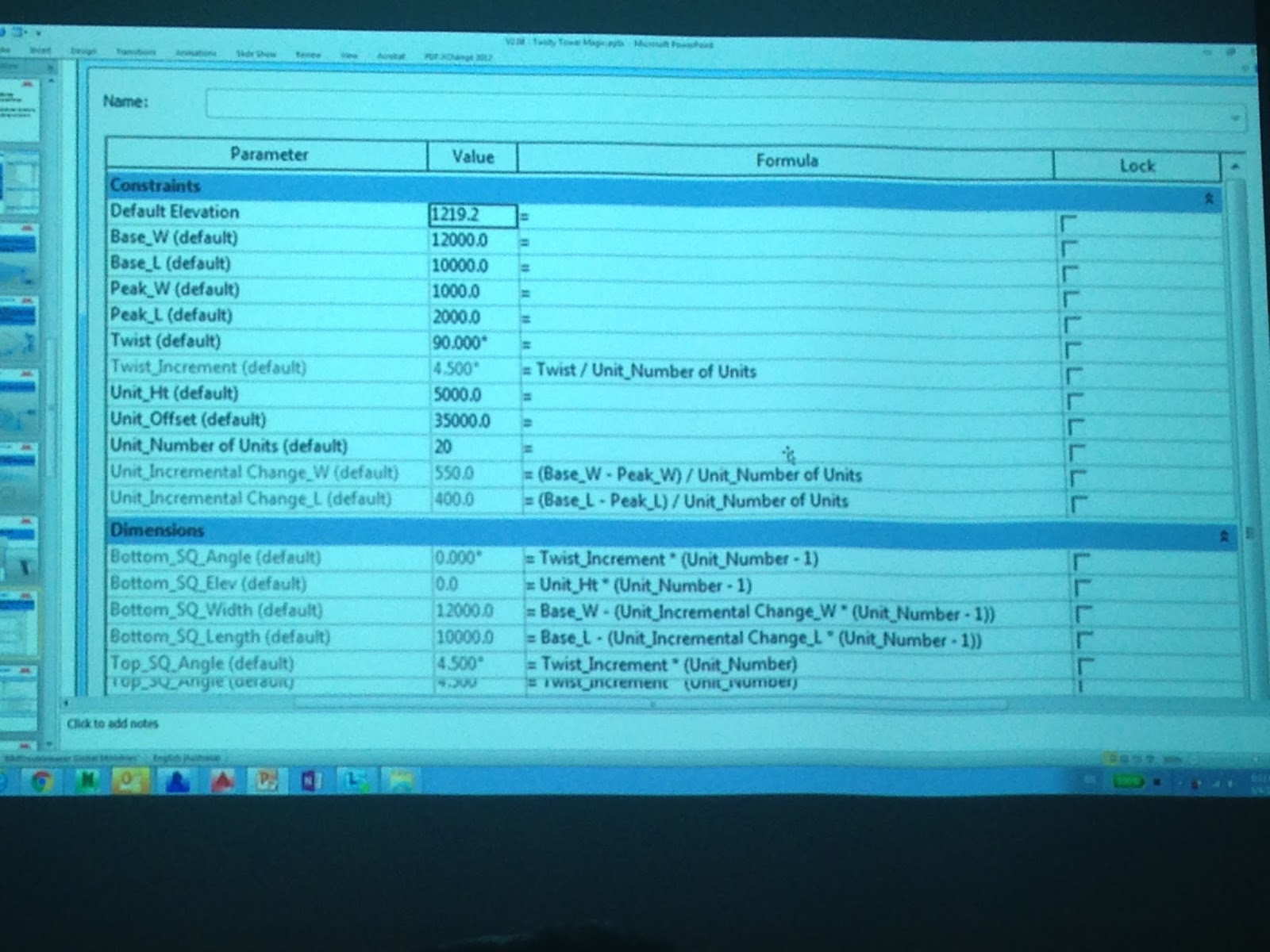
Phil the speaker of the night, explained the concept of the form building using massing environment, the concept is easy to comprehend. Basically,  The whole massing is broken into each individual unit cell (with unit height constrained by angle parameter, which is locked to the reference plane on the base.)

snap shot of the tower


Monday, April 4, 2016

An Overview on Naviswork

A while ago, we have been doing some experimental studies on Navisworks. Naviswork is a 3D design review package for Microsoft Windows. Used primarily in constructoion industries alongside with Autodesk Revit, Autocad and Microstation, it allows users to open and combine 3d models, navigate them around in real-time and review the model using a set of tools, including comments, redlining, viewpoings, and measurements. There are also interesting and useful functions such as clash detection, 4dD time simulation. photorealistic rendering and PDF-like publishing.

In our office, we experimented and pilot a project using Naviswork in one of the project which I am handling -- a remodelling of an existing ward in a local hospital, Changi General Hospital, we used Naviswork to monitor on the sequence of constructions (due to site constraint and to shorten time needed for renovation), location of coring etc. Although the scale of the project is very small for Naviswork, it was a good exercise in getting our hands dirty, studying Naviswork as a tool for project management (which I would be sharing in another post).

The overall process / flow of work (in general, not in detail) in carrying out a project utilising various platform (AutoCad, Revit & Naviswork), in this case Ward 15 in Changi General Hospital are as below. There are several back and forthwork involved in Revit and Naviswork since both of this software can be synchronising at the same time and changes can be reflected almost immediately.
Click to View Larger

For now, I would like to share an overview mindmap of Naviswork, constructed as I was studying online via Lynda.com. The tutorials conducted by Eric Wing was amazing.

The mindmap is massive, considering there are many aspects to cover in Naviswork, but trust me, it is rewarding. For the subsequent blogpost, I will be breaking down the mindmaps into smaller mindmaps with screenshots on how I practiced using Naviswork in subsequent blogposts.


Disclaimer : tutorials posted here are just a record on how we practiced and experimented on the software. Please forgive/feedback if there is any error spotted as we are still baby steps in learning.

Friday, April 1, 2016

Changing Line Colour (Imitating AutoCad)

Our office Cad layer system uses certain color to define certain layer. For example, red for wall line, blue for accessories for line weight. Here are some simple ways to make line in Revit look AutoCad.


1. First, go to Visibility Graphic (shortcut key VV) > Model Categories , click on Object Style


2. Here you may change the Line Colour & Line Weight according to your preferences.


3.  Yup, Now you have a Edges Line Colour you wish for !


Thursday, March 31, 2016

To Show Datum Level on Axonometric


I was preparing an axonometric drawing which was to be shown to our client regarding the phasing of the building and the levels of the particular floors, which I used to do it in Sketchup (Fig 1)


(Fig 2 - the result i wish to create)


(Fig 1- SU Model)

However the 3d gridline in Revit 2016 does not allow me to create datum level (Fig 2) in Project , So I ended up using 3d Model Text to indicate the level, Alternatively, I could move it to Massing Environment, where the datum level can be shown.

Hopefully, the upcoming version of Revit would allow us the option to show datum level on axonometric in project environment.