Showing posts with label naviswork. Show all posts

Wednesday, April 6, 2016

Part 8 - Naviswork - Timeliner

Below is the mindmap of part 8 - Naviswork - Timeliner


i.Configuring appearance

In autodesk naviswork 2012, Autodesk enhanced the way object can appear in your model. In the past, we associate projects with colour overrides or transparency overrides. Autodesk now introduced appearance profiler function. This function allows us to go in by properties to filter information associated to certain properties to filter this subject to associate its information by property or by set.

To update colour to transparency, simply click on the colour in selector > adjust appearance transparency > update


ii.Creating task

To create a simulation of the work progress, we would have to assign task. The task that we put into it will determine what we do in time liner. By doing task assignment, we can actually commence to build our model from ground level, except that it is a virtual model. The idea is to create new tasks > assign time frame to them and select task type.

Workflow for how to import a schedule from project/primavera into naviswork for “timeliner” tool :

1. Create a schedule in Microsoft project or primavera and save the schedule.


2.       Open Naviswork file you wish to import the schedule into.

 3.Under “timeliner” tab, right click and select “add task”.

When link is selected, right click on the link and select “Rebuild Task Hierarchy from Link.” Now the schedule should be listed under the Tasks tab.

 Lesson learned :
1.The schedule can be changed in Microsoft project or Primavera and resaved, then select “rebuild Task Hierarchy from Link” again to update the Timeliner schedule.
2. When appropriately linked, the timeliner can be used to simulate the models construction. If scheduling or sequencing problems with the model or schedule arise, the schedule can be modified and reloaded into Navisworks. 

Adding selection sets to a task

Adding multiple task and running the movie
1. Make sure file.nwd is open and you’re on your Task tab on timeliner.
2. Add Task. Name the new task as “task 1 demo”.
3. Set planned start date and planned end date. 

4. Go to task, right click and attach current selection. Assign task type (construction/demolish?) 
5. Run simulation to make sure everything look okay.


Simulating settings

The speed of movie maybe too fast or too slow. There is possibility you would like to show it daily instead of weekly.

1. Go to task tab to show the entire building.
2. Go to simulate tab > settings > keep the start end dates as they are
3. Interval size , keep it as 5%
4. Playback duration, dump that down to 40 seconds to speed it up a little bit.
5. Go to overlay text, click edit > go to extras > add : active task > ok > run simulation.
6. You will see the percentage of each task displayed by the screen at particular week.


Exporting timeliner
To export movie to video file for presentation.
1.    Go to Simulate tab, export animation.


Adding data source

We can grab something from either Microsoft project, primavera, or even a dumbed down CSV file. The idea is to bring in a CSV file and auto populate as many fields as possible with an actual construction schedule.

1. Open NWD file open, make sure timeline is up and running.

2. Go to data sources > add buttons > Notice you can go with Microsoft Project MPX (CSV file) , or couple different types of Microsoft Projects, Primavera 6 to 8 or P6 down to version 8.3. (in this case, we need a csv file which we will go and prepare first)

3. To prepare a CSV file, go to task tab > “export the schedule” icon > select export CSV > save as test 1 csv file.csv > hit save


4.Go back to data source > add > CSV import > 


Below is our completed timeliner video using Naviswork and Revit. Enjoy ! 

Part 5 - Navisworks - Dealing with Objects

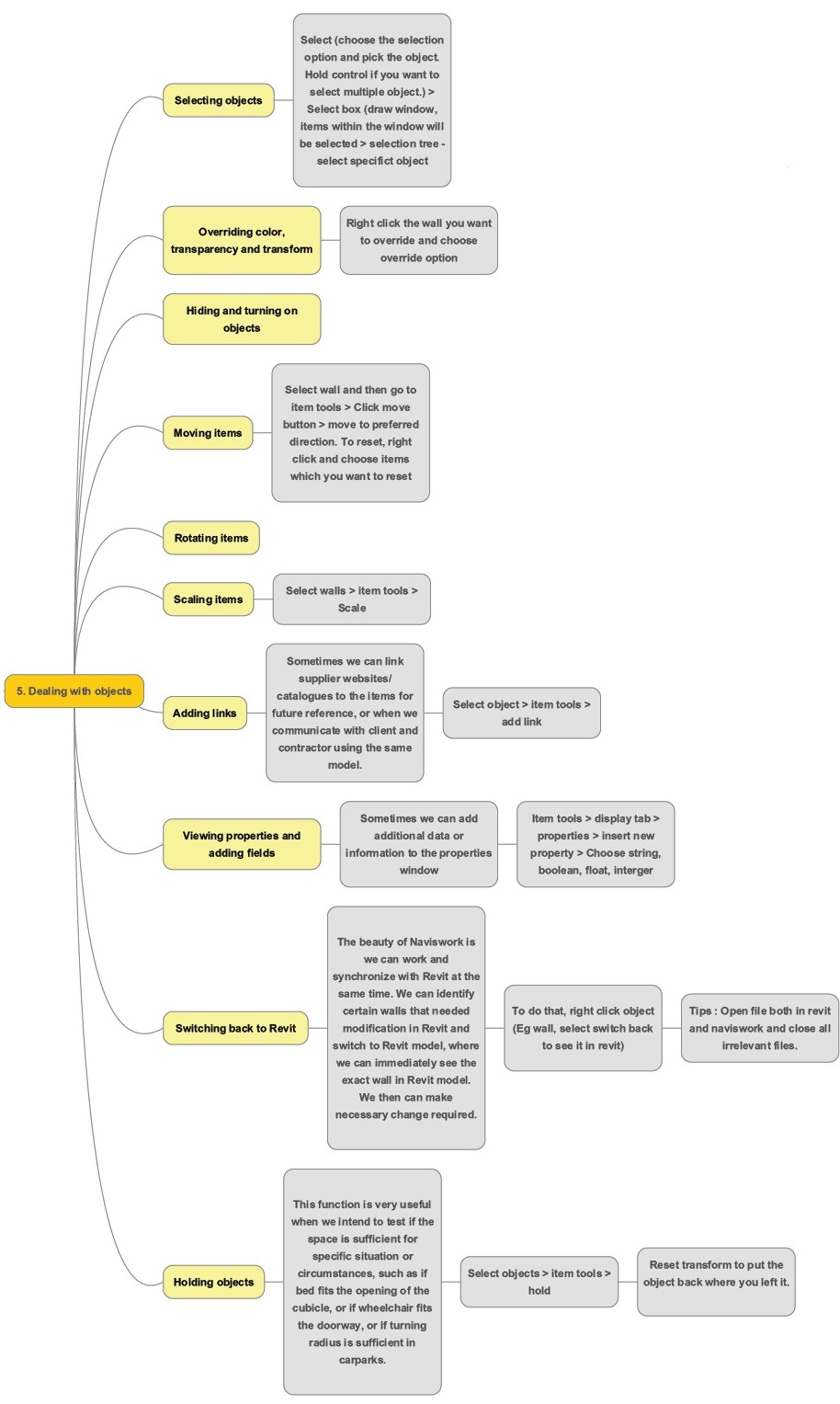
Below is the mindmap of Part 5 - Naviswork - Dealing with objects


1. Selecting object

1. Select (choose the select option and pick the object). Hold control if you want to select multiple object.
2. Select Box (Draw a window, items within the window will be selected)
3. Selection Tree – select specific object


2. Overriding colour, transparency and transform
Right click the wall you want to override and choose override option


3. Moving items

Select walls and then go to item tools > Click move button > move to preferred direction.
To reset , right click and choose items which you want to reset. 

4. Scaling items
Select walls > item tools > scale

5.Adding link
Sometimes we can link supplier websites / catalogues to the items for future reference, or when we communicate with client and contractor using the same model.

Select object > item tools > add link


6. View properties and adding fields
Sometimes we can add additional data or information to the properties window.
Item tools > display tab > properties > insert new property > choose string, Boolean, float, interger


7. Switchback function
The beauty of Naviswork is we can work and synchronise with Revit at the same time. We can identify certain walls that needed modification in Revit and switch to Revit model, where we can immediately see the exact wall in Revit model. We then can make necessary change required.
To do that, we can right click object (eg wall, select switchback to see it in revit).
Tips : Open file both in revit and naviswork and close all irrelevant files. 

8. Holding objects
This function is very useful when we intend to test if the space is sufficient for specific situation or circumstances, such as if bed fits the opening of the cubicle, or if wheelchair fits the doorway, or if turning radius is sufficient in carparks.
Select objects > item tools > hold
Reset transform to put the object back where you left it.  

6. Sorting and Grouping
Right click item > selection inspector > pop up window with selection inspector


Part 4 - Naviswork - The Review Tab

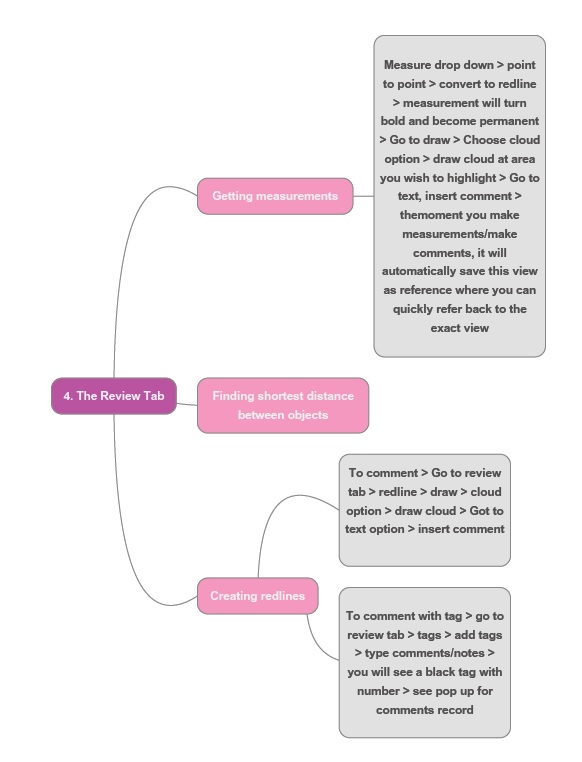
Below is the zoom in mindmap on part 4 of Naviswork - The review Tab

Getting measurement
1) Measure drop down >  point to point > convert to redline > measurement will turn bold and become permanent


Creating Redlines
1)      To comment > go to review tab > redline > draw > cloud option > draw cloud > Go to text option > insert comment

2)      To comment with tag > go to review tab > tags > add tags > type comments/notes > you will see a black tag with number > see pop up below for comments record.


To find out characteristic of walls, right click to select wall to see wall description (item name/item type) 


Tuesday, April 5, 2016

Part 2 : Navigating in a model -- How to navigate in a model ?

Below is the zoom in mindmap on part two of Naviswork - Navigate in a model


Looking around your model
Viewpoint > navigate > look at


Using Gravity Tool 
Viewpoint > render style > realism > check gravity 


Using View Cube
Right click view cube > choose option – set current view as home / - Set current view as front